Unlocking Advanced Agentic Programming: A Comprehensive Guide to High-Performance Claude Code Configuration

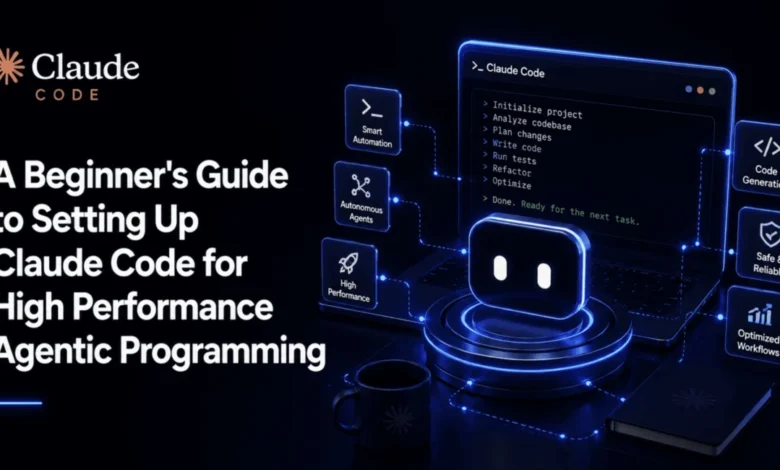
The initial setup of Claude Code, a powerful AI assistant for developers, often falls short of realizing its full potential for high-performance agentic programming. Many users, after a quick installation and initial successful prompt, rarely delve into the crucial configuration files that differentiate a basic setup from a truly optimized workflow. This oversight frequently leads to common frustrations: lost conversational context, repetitive permission prompts, and sessions bogged down by context warnings, ultimately necessitating restarts and wasting valuable developer time. This guide delves into the essential configurations, permissions, hooks, and command habits that elevate Claude Code from a simple tool to an indispensable partner for sustained, complex agentic development, grounded in Anthropic’s current documentation and industry best practices.
The Imperative for Advanced Configuration
In an era where AI-powered development tools are rapidly evolving, the expectation for intelligent agents to perform complex, multi-step tasks autonomously is rising. Default settings, while designed for accessibility, cannot anticipate the nuances of every project or the specific security and workflow requirements of a development team. The gap between a "sensible default" and "high performance" is bridged by understanding and manipulating a handful of critical files that beginners often overlook. This granular control is not merely about tweaking preferences; it’s about establishing a robust, secure, and efficient environment that empowers Claude Code to operate as a truly agentic system, capable of understanding, planning, executing, and verifying complex coding tasks without constant human intervention.
The demand for such sophisticated AI integration is reflected in the broader industry trend towards AI-driven developer productivity. Reports from organizations like GitHub and McKinsey consistently highlight significant productivity gains (often upwards of 30-50%) for developers utilizing AI coding assistants effectively. However, these gains are maximized when the tools are finely tuned to the developer’s environment, codebase, and security policies. Without proper configuration, AI tools can become a source of frustration rather than efficiency, underscoring the critical need for developers to move beyond day-one defaults.
Establishing the Foundation: Installing Claude Code the Right Way
Claude Code is primarily designed as a standalone command-line interface (CLI), though it seamlessly integrates with various developer ecosystems. Anthropic’s recommended installation path prioritizes native installers for stability and performance.
For macOS, Linux, or Windows Subsystem for Linux (WSL) users, the installation is streamlined via a curl command:
curl -fsSL https://claude.ai/install.sh | bashWindows PowerShell users can utilize a similar command:
irm https://claude.ai/install.ps1 | iexAlternatively, for developers who prefer managing tools within their existing Node.js environment, npm provides a fallback option:
npm install -g @anthropic-ai/claude-codeCrucial First Step: Project Context
Beyond the initial installation, the immediate environment in which claude is first invoked profoundly impacts its long-term utility. It is paramount to cd into an active project directory before running claude for the first time. Claude Code intelligently scopes its project memory and settings to the directory from which it is launched. Initiating a session from a generic location like the home folder or desktop will prevent it from automatically indexing relevant project files, leading to a persistent lack of contextual understanding.
cd your-project-directory
claude
Upon its inaugural run, Claude Code initiates an authentication flow. Users can log in via OAuth with a valid Claude subscription (Pro, Max, or Team tiers) or authenticate using an API key linked to a Console account. This flexible authentication caters to individual developers and larger teams alike, ensuring secure access to Anthropic’s models.
While the CLI offers a powerful interface, Claude Code’s capabilities extend across multiple platforms, including a VS Code extension, a JetBrains plugin, a dedicated desktop application, and a web-based version at claude.ai. This multi-platform availability ensures developers can pick up sessions and leverage Claude’s intelligence from their preferred environment. Crucially, all these interfaces read from the same underlying settings and project files, meaning any robust configuration established via the terminal remains consistent across all access points, preventing duplicated effort and ensuring a unified development experience. The installation itself is merely the gateway; the true performance lies in the subsequent configuration of specific files.
The Architecture of Agentic Control: Three Essential Files
Claude Code’s intelligent behavior is governed by a hierarchical configuration system, drawing instructions from two primary locations: a project-specific .claude/ directory (along with a CLAUDE.md file at the project root) and a global ~/.claude/ directory. Understanding the purpose and scope of each is the single most impactful step toward optimizing performance and preventing drift in Claude’s decision-making.
-
CLAUDE.md(Project Root): This Markdown file serves as the project’s living memory and system prompt. It contains stable, project-wide instructions, coding conventions, testing procedures, and architectural overviews. Unlike ephemeral conversational history,CLAUDE.mdprovides persistent context. Anthropic’s documentation strongly advocates for placing foundational rules here because instructions embedded solely in conversation history are susceptible to loss during automatic context compaction in long sessions. Any rule intended to survive beyond the current session – from preferred testing commands to style guides – must be formally documented inCLAUDE.md. -
.claude/settings.json(Project-specific): Located within the.claude/subdirectory, this JSON file defines project-specific operational parameters, including permission rules and hooks. It dictates what commands Claude is allowed to execute, what actions require explicit approval, and what automated scripts should run before or after tool use. This file allows for fine-grained control tailored to the security and workflow requirements of a particular codebase. Its project-level scope ensures that these critical settings are version-controlled alongside the code, providing consistency across development teams. -
~/.claude/settings.json(Global): This file, residing in the user’s home directory, contains global settings that apply across all Claude Code projects on a given machine. It’s ideal for personal preferences, API key management (though often handled interactively), or universal hooks that a developer wants applied regardless of the project. While project-level settings override global ones in case of conflict, the globalsettings.jsonprovides a convenient way to establish a baseline behavior for Claude Code across a developer’s entire workspace.
The practical principle, consistently emphasized by Anthropic and expert practitioners, is clarity and persistence. If an instruction or rule is vital, it must be written down in CLAUDE.md or settings.json. Relying solely on conversational prompts is akin to relying on verbal instructions in a complex software project – prone to misinterpretation and eventual loss.
Fortifying Operations: Permissions and Hooks
One of the most frequent pain points for new Claude Code users is the incessant stream of permission prompts, interrupting workflow and eroding efficiency. Conversely, unchecked execution can pose significant security risks. Claude Code addresses this through a sophisticated permission system and powerful hooks, allowing developers to automate safe actions and rigorously guard against dangerous ones.
Permission Modes and settings.json Rules:
Claude Code operates in three interactive permission modes, toggled with Shift+Tab:
- Trust: Allows Claude to execute commands without explicit approval. This mode is suitable for trusted environments or when working on non-critical, sandboxed tasks.
- Ask: Prompts the user for approval before executing any command. This is the default and safest interactive mode for general use, providing a balance between autonomy and control.
- Deny: Blocks Claude from executing any commands. This mode is useful for read-only analysis or when the user wants to manually control every step.
While interactive modes offer real-time control, the true power lies in defining declarative permission rules within settings.json. These rules allow for granular, persistent control, eliminating repetitive manual approvals for routine, safe operations.
  "permissions":
    "allow": [
      "Bash(npm test:*)",
      "Bash(npm run lint:*)",
      "Read(**)"
    ],
    "ask": [
      "Bash(git push:*)"
    ],
    "deny": [
      "Bash(rm -rf /*)",
      "Bash(sudo:*)",
      "Read(.env)"
    ]
This configuration establishes a clear hierarchy:
allow: Commands matching these patterns (e.g.,npm test,npm run lint, anyReadoperation) execute without prompting. This significantly accelerates iterative development cycles where testing and linting are frequent.deny: Commands matching these patterns are blocked outright, irrespective of any broaderallowrules. Thedeny-firstordering is a critical security feature, ensuring that destructive commands likerm -rf /*,sudo:*, or reading sensitive.envfiles are never executed. This proactive blocking mechanism is a cornerstone of secure agentic programming.ask: Commands not explicitlyallowed ordenyed (e.g.,git push:*) will trigger a prompt, giving the developer a final review opportunity for potentially impactful actions.
Automating Workflows with Hooks:
Hooks elevate permission management by enabling actual script execution in response to Claude’s actions. They provide a powerful mechanism for automating mundane tasks, enforcing code standards, and implementing advanced security checks.
A common and highly recommended PostToolUse hook automates code formatting:
  "hooks":
    "PostToolUse": [

        "matcher": "Write
    ]
This hook ensures that every time Claude writes or edits a file, Prettier (or any chosen formatter) automatically processes that specific file. The $CLAUDE_TOOL_INPUT_FILE_PATH environment variable dynamically provides the path of the changed file, ensuring precise application. This eliminates the need for manual reformatting, guaranteeing consistent code style regardless of whether the developer or Claude made the changes.
For robust security, PreToolUse hooks can inspect and block dangerous commands before they execute, offering a stronger safeguard than simple permission patterns. This allows for dynamic analysis of the command text itself.
#!/usr/bin/env python3
# .claude/hooks/block-dangerous-bash.py
import json, re, sys

DANGEROUS_PATTERNS = [
    r'brms+.*-[a-z]*r[a-z]*f',  # Recursive force delete
    r'sudos+rm',                # Sudo with rm
    r'chmods+777',              # World-writable permissions
    r'gits+pushs+--force.*main', # Force push to main
]

input_data = json.load(sys.stdin)
if input_data.get('tool_name') == 'Bash':
    command = input_data.get('tool_input', ).get('command', '')
    for pattern in DANGEROUS_PATTERNS:
        if re.search(pattern, command, re.IGNORECASE):
            print("BLOCKED: matches a dangerous command pattern", file=sys.stderr)
            sys.exit(2) # Exit code 2 signals a hard block to Claude Code
sys.exit(0)
This Python script, configured as a PreToolUse hook for Bash commands, receives the tool call details via standard input. It then checks the exact command string against a list of dangerous regular expressions. If a match is found, the script prints a blocking message to stderr and exits with code 2, which Claude Code’s hook system interprets as a hard block, preventing the command from ever running. This establishes a permanent, dynamic safety net, far more comprehensive than static permission rules.
Mastering Efficiency: Essential Commands for Agentic Workflows
Claude Code ships with a rich set of built-in commands, designed to manage context, plan tasks, review code, and navigate sessions. While memorizing all sixty-plus commands immediately is unnecessary, focusing on a core set can dramatically improve session performance and developer productivity. These commands directly address common challenges in agentic programming, from context management to code quality assurance.
/init(Setup): Scans the codebase and generates an initialCLAUDE.md, providing a valuable starting point for project context./memory(Setup): OpensCLAUDE.mddirectly for editing, facilitating immediate updates to project context./clear(Context): Initiates a fresh conversation while retaining project memory (CLAUDE.md), ideal for starting new tasks without losing essential background information./compact [focus](Context): Summarizes conversation history to free up context window space, a critical command for long sessions. It allows specifying afocusto preserve specific details. This directly addresses the "wall of context warnings" problem./context(Context): Displays current context window usage, helping developers monitor token consumption and identify potential bloat./plan(Planning): Toggles Plan Mode. In this mode, Claude proposes actions before executing them, requiring explicit approval. This command is invaluable for complex tasks, allowing developers to review and guide Claude’s strategy, preventing unintended side effects./diff(Review): Opens an interactive diff of all changes made during the current session. This is fundamental for reviewing Claude’s output before committing, ensuring accuracy and alignment with expectations./code-review [--fix](Review): Checks the current diff for correctness bugs, with the--fixflag applying suggested changes./security-review(Review): Specifically checks the current diff for security vulnerabilities, adding a crucial layer of protection./review(Review): Provides a read-only review of a GitHub pull request, extending Claude’s capabilities to collaboration workflows./resume [session](Navigation): Resumes a previous conversation by name or ID, ensuring continuity across work sessions./branch [name](alias/fork) (Navigation): Forks the current conversation into a new session, allowing for parallel exploration of different solutions or problem-solving paths./rewind(Navigation): Rolls back code and/or conversation to an earlier checkpoint, a powerful undo mechanism for agentic work./model(Cost & Performance): Switches the active model mid-session without losing context, enabling dynamic optimization for cost or performance./effort(Cost & Performance): Sets reasoning depth (low through max) to match task complexity, allowing for resource allocation based on need./cost(Cost & Performance): Displays token usage and estimated spend for API-key users, essential for managing budget./agents(Delegation): Manages subagents – viewing, creating, or invoking specialized agents for parallel or isolated tasks./permissions(Configuration): Manages permission rules interactively./hooks(Configuration): Manages hooks interactively./doctor(Diagnostics): Checks the Claude Code installation for common configuration problems, providing self-help for troubleshooting.
For beginners, mastering /compact, /plan, and /diff is paramount. These three commands collectively address the majority of early frustrations: context bloat, unintended edits, and lack of transparency regarding changes. Once these become muscle memory, the other commands naturally integrate into a more advanced workflow.
Extending Capabilities: Building Your Own /truth Command
While Claude Code offers a rich command set, its custom command system allows developers to create highly specialized tools. A hypothetical, yet incredibly useful, command is /truth – designed to verify Claude’s recent claims against the actual codebase. This isn’t a native command, but its creation exemplifies the power of Claude’s extensibility for building self-correcting agents.
Custom commands are defined as "skills," typically within a folder containing a SKILL.md file. To implement /truth, create .claude/skills/truth/SKILL.md:
---
description: Verify Claude's most recent claims and edits against the actual codebase
allowed-tools: Read, Grep, Glob, Bash(git diff:*)
---

Re-examine everything you just told me in this conversation against what
actually exists in the codebase right now. Specifically:

1. For every file you claim to have edited, read it again and confirm the
   change is actually present and matches what you described.
2. For every claim about existing code (a function's behavior, a config
   value, an import, a dependency version), verify it against the real
   file rather than your memory of reading it earlier in the session.
3. Run `git diff` and compare the actual diff against what you described
   changing.
4. Report back plainly: which claims checked out, which didn't, and
   exactly what the discrepancy was for anything that failed. Do not
   soften or hedge a discrepancy you find, state it directly.
The YAML frontmatter allowed-tools is critical, restricting /truth to read-only operations (Read, Grep, Glob) and a scoped git diff. This ensures that the verification step cannot itself introduce modifications, preserving its integrity. The instruction body is deliberately explicit, compelling Claude to re-read actual files and compare git diff output, rather than relying on its internal memory or prior outputs. The directive "Do not soften or hedge a discrepancy you find" is essential for fostering true self-correction and preventing confirmation bias.
Once this SKILL.md file is saved, /truth becomes available within that project’s sessions. Running it after a multi-step task, especially one involving multiple file edits or claims about existing code, provides a vital sanity check before committing changes. This command embodies a core principle of reliable agentic systems: verification must involve external, ground-truth data (the actual codebase) rather than simply reaffirming internal model states.
Scaling Productivity: Subagents and Parallel Execution
While individual session optimization enhances reliability, scaling productivity for larger, more complex projects often requires delegation and parallelization. Subagents and advanced worktree management are key to achieving significant speed gains.
Subagents for Isolated, Specialized Tasks:
A subagent is a specialized instance of Claude Code, equipped with its own distinct context window, system prompt, and tool permissions. Anthropic’s documentation highlights their isolation from the main session; subagents return only a concise summary of their findings or actions, rather than flooding the primary conversation with every intermediate file read or tool call.
This isolation is the fundamental performance advantage. Tasks that are inherently verbose or require extensive exploration – such as large codebase audits, dependency analysis, or comprehensive test suite generation – can consume significant portions of a main session’s context budget. Delegating these to a subagent prevents context bloat in the primary session, allowing the lead agent to remain focused on the core task while receiving only the synthesized results.
Subagents can be created interactively using the /agents command within a session, which presents an interface for management. Alternatively, they can be defined declaratively as files in .claude/agents/<name>.md, complete with their own frontmatter for model selection and tool access, mirroring the skill file structure. A common pattern involves creating narrowly scoped subagents like a code-reviewer or test-runner with read-only access. This enforces a crucial separation of concerns: the subagent can inspect and report issues without possessing the ability to make the changes it is reviewing, enhancing both security and review integrity.
Parallel Work with /batch and --worktree Sessions:
For scenarios demanding genuinely parallel work – where multiple, unrelated parts of a codebase need simultaneous modification without interference – Claude Code offers advanced capabilities through /batch and --worktree sessions. These allow multiple Claude Code instances to operate concurrently within isolated Git worktrees. Each worktree provides a separate working directory, preventing agents from conflicting with each other’s changes. While a more advanced pattern than typically required for a beginner’s day-one setup, understanding its existence is crucial for future scaling, especially when single-session work becomes a bottleneck for large-scale development efforts. This parallel execution paradigm mirrors advanced human development workflows, where large teams often work on different features or bug fixes simultaneously.
Practical Implementation: A High-Performance Starter Kit
Bringing together the principles of persistent context, secure permissions, and automated hooks, here’s a robust starting point for any new Claude Code project. These files should be committed to the project repository (excluding sensitive information), ensuring that every team member benefits from a consistent, high-performance baseline.
CLAUDE.md (Project Root):
# Project Context

## Stack
- [Your language/framework here, e.g., Node.js, TypeScript, React, Python, Django]
- [Key libraries and tools, e.g., Tailwind CSS, PostgreSQL, Docker]

## Commands
- Test suite: `npm test`
- Linting: `npm run lint`
- Development server: `npm run dev`
- Build process: `npm run build`

## Conventions
- Code Style: Adhere to ESLint/Prettier rules.
- Naming: CamelCase for variables, PascalCase for components/classes, kebab-case for filenames.
- Folder Structure: Follow a modular approach, e.g., `src/components`, `src/utils`, `src/services`.
- Error Handling: Use try-catch blocks for async operations; log errors centrally.
- Documentation: Add JSDoc/Python docstrings for all public functions/methods.

## Before finishing any task
- Run the full test suite and confirm all tests pass.
- Run `npm run lint` and resolve all warnings/errors.
- Review all changes using `/diff` and ensure they align with the task.
- Run `/truth` if the task involved editing more than one file or making significant claims about existing code.
- Ensure new code is adequately covered by tests.
This CLAUDE.md provides Claude with a comprehensive understanding of the project’s technical stack, critical commands, and established conventions. The "Before finishing any task" section acts as a crucial checklist, embedding quality assurance directly into Claude’s workflow.
.claude/settings.json:
  "permissions":
    "allow": [
      "Bash(npm test:*)",
      "Bash(npm run lint:*)",
      "Bash(npm run dev:*)",
      "Bash(npm run build:*)",
      "Read(**)"
    ],
    "ask": [
      "Bash(git push:*)",
      "Bash(git commit:*)"
    ],
    "deny": [
      "Bash(rm -rf /*)",
      "Bash(sudo:*)",
      "Bash(mv /*)",
      "Bash(cp /*)",
      "Read(.env)",
      "Read(config/secrets.js)"
    ]
  ,
  "hooks":
    "PreToolUse": [

        "matcher": "Bash",
        "hooks": [ "type": "command", "command": "python3 .claude/hooks/block-dangerous-bash.py" ]

    ],
    "PostToolUse": [

        "matcher": "Write
    ]
This settings.json establishes a secure and efficient operational environment. It allows common development commands, prompts for critical Git operations, and rigorously denies potentially destructive actions or access to sensitive files. The PreToolUse hook integrates the dangerous bash blocker, while the PostToolUse hook ensures automatic code formatting. For personal overrides or sensitive settings, settings.local.json can be used and excluded from version control.
Conclusion: The Future of High-Performance Agentic Development
The distinction between a rudimentary Claude Code setup and a high-performance, agentic system is not found in hidden features, but in the intentional investment of time into foundational configuration. The memory files (CLAUDE.md), precise permission rules, powerful hooks, and mastery of key commands collectively dismantle the friction points that plague unconfigured AI tools. By establishing these elements – often a twenty-minute upfront effort – developers can transform Claude Code into a robust, secure, and highly productive partner.
This approach aligns with the broader industry movement towards more autonomous and reliable AI agents in software development. As AI continues to integrate deeper into coding workflows, the ability to precisely configure, secure, and optimize these agents will become a core competency for developers and teams aiming to maximize productivity, maintain code quality, and accelerate innovation. Committing these configurations to a project’s repository ensures that every developer starts from a strong, consistent baseline, fostering a collaborative environment where AI-assisted development is not just a novelty, but a seamlessly integrated and highly effective practice. The future of development is increasingly agentic, and optimized configuration is the key to unlocking its full promise.